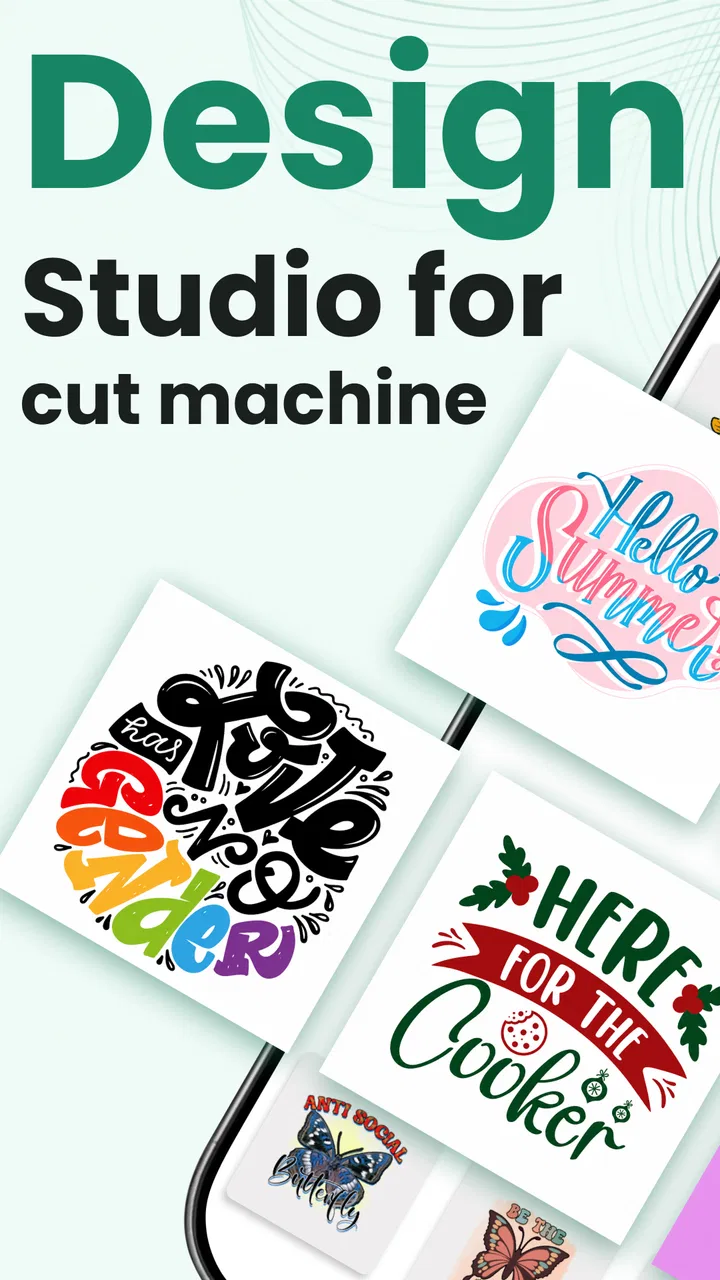
Design Studio - DIY Art Space
- 2.9
- Rating
- 100.00K
- Installs
- Free
- Price

 Analysis by App-foxy
I approached Design Studio - DIY Art Space as a practical companion for small creative projects rather than as a complete replacement for desktop design software. It sits in the Art & Design category, comes from DOSA Apps, and focuses on ready-to-use SVG cut files, sublimation artwork, fonts, and monogram-style resources for people who work with cutting machines. That focus is important: the app is most useful when I already have a project in mind and need a starting point quickly.
The app is free to install, with optional in-app purchases ranging from $0.99 to $99.99 per item. It is suitable for Everyone, works on Android 8.0 and later, and the current version is 111.1.1. Its store summary points to more than a thousand design resources, but I found the real value less in the headline number and more in how easily I could move from browsing an idea to preparing something for a physical project.
From a vague idea to a usable design
My typical starting condition was simple: I knew the object I wanted to make, but I did not want to draw every element from a blank canvas. A name for a shirt, a small decoration for a gift, or a graphic for a craft project can require more preparation than the finished item suggests. Design Studio helps by placing visual building blocks in front of me instead of asking me to begin with an empty page.
You May Also Like

 Blood Strike: 2.5 Anniversary
Blood Strike’s Loadouts Turn Every Drop Into a Tactical Gamble
A close look at Blood Strike’s custom loadouts: how fast access to signature weapons reshapes its battle royale rhythm, rewards preparation, and narrows the gap between fights.

 Pandora - Music & Podcasts
Pandora’s Music Is Easy to Start, but Harder to Recover
Pandora’s strength is its low-effort path from a seed to a station. Its weak spot is how much confidence it asks you to place in connection, setup, and quiet recovery.

 8 Ball Pool
8 Ball Pool Is Built on Rivalries, Rematches, and Routine
A close look at the rivalries, rematches, shared routines, and unanswered safety questions that turn a quick pool match into a persistent mobile community.

 Samsung Music
Samsung Music’s Quiet Strength Is Playing What You Already Own
Its reach comes less from spectacle than from dependable access to a personal library. That simplicity is both the app’s strongest retention engine and its ceiling.

 AccuWeather: Weather Radar
AccuWeather Review: A Quick, Clear Forecast for Everyday Decisions
For everyday plans, the best forecast is the one you can understand quickly. AccuWeather makes rain timing, radar, and local conditions easy to act on, with a few trade-offs.

 Hill Climb Racing
Why Hill Climb Racing Still Turns Crashes Into One More Run
A tiny car, a bumpy hill and one more upgrade: Hill Climb Racing keeps resurfacing because its simple chaos makes every near-miss feel personal.
More From Our News Desk



This is where the app feels different from a general drawing application. A blank illustration tool gives me freedom, but it also gives me all the work. Here, the emphasis is on finding a suitable cut file, font, or monogram and then adapting the idea to my purpose. That makes it appealing to beginners who understand what they want to make but are less comfortable creating vector artwork from scratch.
I would not describe it as a full professional design suite. If I need detailed illustration, advanced typography controls, complex layers, or exact production management, I would still choose a more established desktop editor. Design Studio works better as a fast source of inspiration and prepared artwork, especially when the physical result matters more than a polished digital composition.
Browsing is part of the creative process
The first useful habit is to browse with the final material in mind. A design that looks attractive on a phone may become difficult to cut, weed, press, or print once it is transferred to a real surface. I found it more productive to ask practical questions while looking: will the smallest details survive, is the lettering easy to read, and can the design be separated into sensible elements?
That way of browsing is more valuable than simply collecting attractive graphics. For a cutting-machine project, a clean silhouette can be more useful than an elaborate image. For sublimation, the visual balance and color area may matter more. For a personalized monogram, the letter arrangement and spacing become the deciding factors. The app’s collection is therefore best treated as a set of starting points, not as a guarantee that every design will suit every material.
A useful workflow is to save the strongest candidates mentally or in a small project plan before making a purchase. I compare them by the final object, not by how impressive they look in the preview. This reduces the chance of choosing a design that requires extensive cleanup later.
Preparing the handoff to a cutting machine
The important handoff happens when a screen-based design leaves the app and enters a separate cutting or printing workflow. I would not assume that selecting a graphic automatically solves the technical preparation. The design still needs to be checked for scale, orientation, detail, and compatibility with the destination software or machine.
For a vinyl project, I pay particular attention to enclosed shapes and narrow gaps. A design can appear perfectly clear on a phone while containing tiny islands that are awkward to weed. I also check whether lettering will need mirroring before cutting. That is not a criticism unique to this app; it is simply the point where creative browsing becomes production work.
For sublimation, I think about the blank item and the transfer method before committing to artwork. A large, detailed graphic may be attractive but unsuitable for a small mug area or a narrow garment panel. A simpler design with stronger contrast can produce a more convincing result. Design Studio makes the discovery stage faster, but it does not remove the need for this judgment.
The strongest workflow is browse first, inspect second, and only then prepare the file for production. Treating the app as an automatic machine controller would create disappointment. Treating it as a resource library and design starting point is much closer to its practical role.
Personalization without starting over
Monograms and fonts are especially useful when I want a project to feel personal without building every decorative element myself. I can begin with a general style and then adapt the initials, name, or wording to the recipient. This is a quicker route to a gift or small custom item than drawing a complete composition from nothing.
There is a trade-off, though. A ready-made font or monogram can make a project look finished quickly, but it may also make the result feel familiar if I use it without adjustment. I prefer to change the placement, combine a simple letter treatment with a restrained graphic, or use a less obvious color arrangement. Small decisions like these help the finished object feel chosen rather than copied.
When working with names, I also check readability at the actual intended size. Decorative lettering can become difficult to distinguish when reduced. This is one of the less obvious advantages of testing the idea early: the app helps me find a visual direction, while the final-size preview or test cut tells me whether that direction is practical.
What happens after the design leaves the app
The handoff between Design Studio and the rest of my workflow is where expectations need to stay realistic. I may discover an appealing resource in the app, but the finished result still depends on the cutting machine, printer, blank surface, material settings, and the software used to complete the project. The app can shorten the search and planning stage; it cannot control every later variable.
For someone who already owns a cutting machine, this can be a convenient division of labor. I can use the app for ideas and source material, then move into the machine’s normal preparation process. Someone who expects an all-in-one experience may find the separation less convenient, particularly if they want to design, edit, send, and produce without switching tools.
I would also avoid assuming that every resource will be equally easy to modify. Some designs are naturally flexible, while others depend on their original arrangement. A simple monogram may adapt well to different names, but a tightly composed graphic may require more work when the wording changes. Before choosing a design for a customer or a time-sensitive gift, I would test the personalization step rather than relying only on the preview.
A realistic everyday project
Imagine I need a personalized shirt for a family event and have only a short evening to prepare the idea. I would begin by searching through the app’s fonts, monograms, and cut-oriented artwork instead of opening a blank editor. I would shortlist a few styles that match the shirt color, then reject anything with overly fine details or lettering that becomes unclear at the intended size.
Next, I would plan the name or initials and decide whether the design should be a single-color cut or a more involved transfer. I would check the composition at the approximate shirt placement, allowing room around the lettering rather than filling every available area. Once the concept looked sensible, I would move the artwork into the appropriate machine workflow, confirm the scale, and remember any required mirroring.
The app’s contribution in that scenario is speed at the beginning. It helps me move from “I need a shirt design” to a concrete visual direction. The later steps still require care, but I am no longer spending the whole evening inventing decorative shapes. If the first choice proves too complicated to cut, I can return to the app and select a cleaner alternative rather than forcing a bad design through production.
Where it compares well with usual alternatives
Compared with a blank drawing app, Design Studio is more approachable for craft users who want prepared inspiration. I do not need to understand vector construction before finding something that can guide a project. Compared with a general image editor, it is more focused on the needs of cutting, sublimation, fonts, and monograms.
On the other hand, a general editor usually gives me more control over custom composition. If I want to draw an original character, build a detailed illustration, or manage a complex layout with precise typography, I would rather use that kind of tool. A machine manufacturer’s own design software may also be the better choice when I need direct compatibility, material settings, or a tightly integrated production path.
That makes the app a useful middle option. It is more directed than a blank canvas, but less comprehensive than a full design workstation. I see it as a companion for finding and shaping ideas, not as the only application I would keep for every stage of a serious design business.
Small decisions that improve the outcome
One practical tip is to design for the weakest part of the final process. If I am cutting vinyl, I simplify before I become attached to a detailed preview. If I am preparing sublimation artwork, I think about the shape and color of the blank rather than judging the graphic in isolation. This prevents a common mistake: choosing the most attractive screen image instead of the most reliable physical result.
A second tip is to keep personalization restrained. Adding several fonts, decorative frames, and extra symbols can make a monogram harder to read and harder to produce. I usually get a better result by choosing one dominant element and letting the name or initials remain clear.
A third tip is to treat paid resources as a decision point, not an interruption to ignore. Since individual in-app purchases can range from $0.99 to $99.99, I would examine how well a resource fits the actual project before spending. A low-cost design may be worthwhile for a one-off gift, while a higher-priced item deserves a clearer reason, such as repeated use in a broader collection of projects.
The free entry point makes experimentation easy, but the purchase range means I would keep track of what I am selecting. The app is most comfortable for users who are willing to browse carefully and make deliberate choices, rather than tapping through a collection impulsively.
Where the flow breaks down
The main friction appears when I need more than discovery and basic creative direction. A resource library can get me close to an idea, but production often demands cleanup, resizing, separation, mirroring, and testing. If I am under a strict deadline, those extra steps can matter more than the time saved during browsing.
The store rating is 2.9 from around 193 ratings and 49 reviews, which suggests that the experience has not been equally smooth for everyone. I would take that as a reason to approach the app with practical expectations. It has attracted over 100K installs, so it is clearly reaching craft-oriented users, but popularity does not remove the need to check how well the workflow fits my own device and production setup.
I would also skip it if my main goal is advanced original illustration. The app’s strengths are resources and quick direction, not replacing a professional vector editor. Likewise, if I only want a tightly integrated machine workflow with no handoff between applications, a manufacturer-specific option may be less frustrating.
Another limitation is creative sameness. Ready-made assets can help me finish faster, but they can also lead to projects that resemble other users’ work. I avoid that by combining the resource with my own spacing, color choices, wording, or layout. The app gives me a head start; the personal decisions are what make the result feel like mine.
Who should install it
I would recommend Design Studio to a beginner with a cutting machine, a hobbyist who regularly makes personalized gifts, or a creator who wants a quicker way to explore SVG-style artwork, fonts, sublimation ideas, and monograms. It is particularly useful when the difficult part is finding a workable starting point rather than mastering every design technique.
I would be more cautious recommending it to a professional designer who needs deep editing controls, dependable production automation, or a single tool for the entire pipeline. That user may find the handoff into other software slows down the process. The same applies to anyone who dislikes browsing paid resources or wants every design decision to begin from an entirely blank canvas.
Because the app is rated for Everyone and is free to install, it is easy to try without making a large initial commitment. Still, I would begin with a small personal project, inspect the workflow from selection through final preparation, and only then decide whether it deserves a regular place in my craft routine.
My final take after following the full workflow
Design Studio - DIY Art Space works best at the beginning of a physical creative project. It helps turn a vague request into a visual option, gives beginners useful material to explore, and can save time when I need a font, monogram, or cut-oriented idea quickly. I like it most when I use it as a launchpad and keep responsibility for the important production decisions.
Its weaknesses are just as clear: the app does not eliminate preparation, the handoff to a machine or separate editor can introduce friction, and ready-made artwork may need simplification or personalization before it feels truly successful. For advanced illustration or a completely integrated machine workflow, another tool would be a better fit.
My recommendation is therefore practical rather than unconditional. Install it if you want a focused source of craft inspiration and are comfortable finishing the job in the tools you already use. Start with a simple project, test the design at its real size, and judge the result by how well it becomes a physical object—not merely by how good it looks on the screen.
FAQs for Design Studio - DIY Art Space
01What is Design Studio - DIY Art Space?
Design Studio - DIY Art Space is a creative app focused on digital drawing, painting, and artistic experimentation. It provides a virtual workspace where users can create original artwork, try different brushes and colors, and develop designs without needing physical art supplies. It is suitable for casual creativity, practice, and sharing finished projects, although the available tools and features may depend on the device and app version.
02Is Design Studio - DIY Art Space suitable for beginners?
Yes, the app is generally approachable for beginners because it encourages experimentation rather than requiring advanced artistic knowledge. New users can start with simple sketches, color combinations, and decorative projects before moving on to more detailed work. However, beginners should spend some time exploring the interface, brush settings, layers, and editing controls, since understanding these tools makes the creative process much easier and more enjoyable.
03Does Design Studio - DIY Art Space work offline?
Some creative functions may be available without an internet connection, allowing users to continue drawing or designing when they are offline. Nevertheless, online access may be required for downloading certain content, displaying advertisements, synchronizing projects, accessing external resources, or sharing artwork. Before relying on the app during travel or in areas with limited connectivity, it is best to test the main tools offline on your own device.
04Is Design Studio - DIY Art Space free to download and use?
The application may be available as a free download, but users should check the current store listing for the exact pricing model. Free apps can include advertisements, optional purchases, locked creative resources, or premium features. The basic experience may be enough for casual users, while people who want additional tools or an uninterrupted workspace could encounter paid upgrades. Always review the purchase details before confirming any transaction.
05Can I save or share artwork created in Design Studio - DIY Art Space?
The app is designed to let users keep their creative work and, depending on the supported features, export or share finished designs through common mobile options. Available formats, image quality, and sharing destinations can vary by operating system and version. It is wise to save important projects regularly and keep backup copies, especially before uninstalling the app, clearing its data, or moving to another device.
Pros
- Simple tools make it easy for beginners to create digital artwork.
- A relaxing creative space encourages experimentation without performance pressure.
- Customizable designs allow users to develop a personal visual style.
- Works well for short creative sessions when you have limited free time.
- Suitable for users who enjoy decorating
- crafting
- and visual expression.
Cons
- Some advanced editing options may feel limited for experienced artists.
- Creative projects can become repetitive after extended use.
- Small-screen editing may make precise details difficult on some phones.
- Certain content or features may require in-app purchases.
- Performance may vary on older devices with limited memory.

Design Studio - DIY Art Space
Gallery